
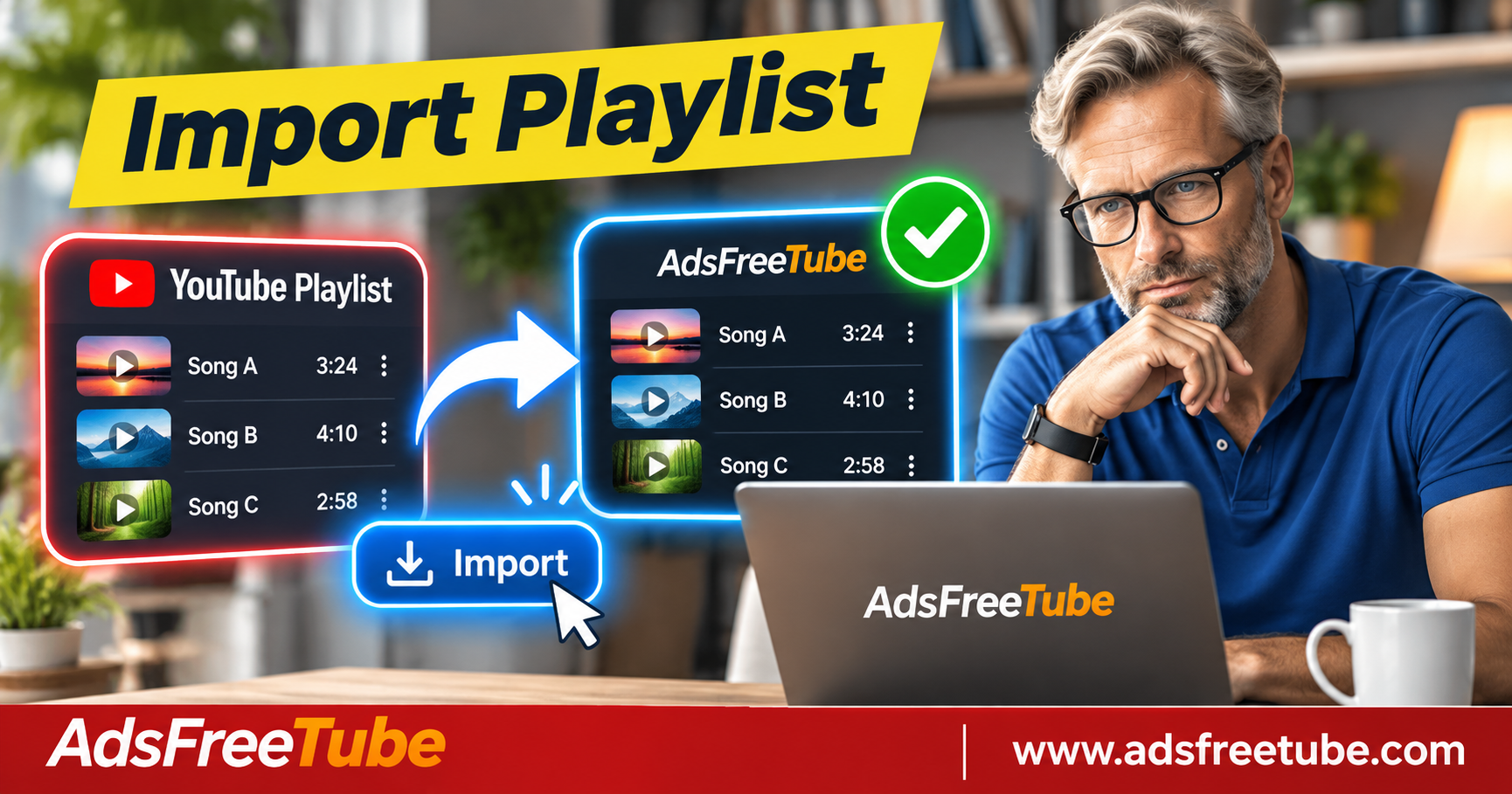
You have already organized a set of songs, podcast episodes, or lessons on YouTube. Reentering every video into a second player would waste the work you have done. To import a YouTube playlist into AdsFreeTube, start with the playlist's URL: the player can load the collection into a session queue from that link.
The important details are which URL you copy, what a successful load actually creates, and why a few videos may still be unavailable. This guide walks through those decisions so you can move from a playlist page to playback without adding each item manually. 🎧
Key Takeaways
- Copy a public playlist link containing
list=, then paste it into AdsFreeTube and select Play. - Check the playlist title and queue after loading; a single-video link may open only one item.
- Importing prepares a playback session. It does not copy the collection into a YouTube account or guarantee a permanent queue.
- Private, removed, age- or region-restricted, and embedding-disabled videos can be missing or fail to play.
- Keep the source URL so you can reload the playlist later without rebuilding it video by video.
Start with the right YouTube playlist URL
The safest starting point is the playlist page on YouTube. Open the collection you want, use its share or copy-link option, and inspect the result before pasting it into another player. A common playlist URL has this shape:
https://www.youtube.com/playlist?list=PLAYLIST_ID
The list= parameter identifies the collection. Some links also contain watch?v=VIDEO_ID&list=PLAYLIST_ID, which points to a video inside a playlist. If you want the full collection, copying from the playlist page is clearer than copying the address of one playing video. Remove unrelated tracking parameters if you want a cleaner bookmark, but preserve the complete playlist ID.
| Link you copied | What it identifies | Best next step |
|---|---|---|
youtube.com/playlist?list=... | A playlist collection | Paste it to load the playlist |
youtube.com/watch?v=...&list=... | A video with playlist context | Prefer the playlist page URL if the collection matters |
youtube.com/watch?v=... | One video | Return to the playlist page and copy its link |
| A playlist title or screenshot | No playable URL | Copy the actual address or share link |
For an import YouTube playlist URL workflow, the URL supplies the collection the player can identify.
Import the playlist into AdsFreeTube
The workflow to import YouTube playlist online is short. You need a supported public source, a modern browser, and an internet connection. You do not need to manually paste every video's address.
- Open the public YouTube playlist and copy its full URL, including
list=. - Open AdsFreeTube's player. Paste the URL into the YouTube video or playlist URL field.
- Select Play and allow the player to identify the source and prepare the queue.
- Confirm that the intended playlist title and multiple items appear. On a small screen, open the queue panel if it is collapsed.
- Select the starting item, then set shuffle or repeat to suit the session. Leave shuffle off for a course or numbered series.
That is the practical answer to how to open a YouTube playlist in AdsFreeTube. The player detects video and playlist links automatically; the URL tells it which source to prepare. If you are new to its playback controls, the guide to loading public YouTube playlists and choosing their playback order provides a shorter overview.
For a first test, choose a public playlist with several distinct videos. Compare the first few queue titles with the source playlist to confirm the collection and order. 🎵
Understand the queue result
To import a YouTube playlist to a player means loading a source collection for playback. It does not mean transferring ownership, creating a new YouTube playlist, or copying media files. The playlist remains at its original source; the queue is the active sequence AdsFreeTube prepares for your current session.
You can start at a particular lesson, check what follows, and set controls for this session. For later, keep the original URL or save the source as a Favorite in the same browser.
The guide to choosing between Favorites, History, a queue, and a playlist explains which tool fits each return visit. Favorites and History are local to the browser; they are not a cloud backup of every session detail. If the playlist owner changes the collection, reloading the same link may also produce a different set of available items.
When you add a YouTube playlist to queue playback, inspect the result instead of assuming every source item survived. Check the title, visible item count, first and next tracks, and the shuffle and repeat settings. For a lesson sequence, play one item and test a normal transition to the next. For music, decide whether you want the original order or a shuffled session before leaving the player running.
Know which source restrictions still apply
AdsFreeTube can organize supported sources, but it cannot change YouTube's visibility or a video's playback permissions. A public playlist may contain individual entries that are private, deleted, blocked in your region, restricted by age, or unavailable for external embedding. A link that opens for a signed-in owner may also fail for a browser player that cannot use that account's permissions.
For the most predictable import public YouTube playlist experience, choose a list whose videos are themselves publicly playable. An unlisted link may be shareable on YouTube, but the safest supported workflow here is a public playlist; do not treat an unlisted or private collection as guaranteed to import. The player cannot turn an inaccessible source into a public one.
An import playlist without account workflow is possible because AdsFreeTube accepts a URL rather than requiring a YouTube sign-in for the player. That convenience does not grant access to private playlists or account-only videos. It also does not make an offline copy. Network access and source availability remain necessary each time you play imported YouTube playlist items.
For an important recording, save its individual URL alongside the playlist link.
Troubleshoot an import that does not look right
When playlist import is not working, start with the smallest possible test. Open the original playlist on YouTube, then try a single item directly. Compare that with another known public playlist in AdsFreeTube. These checks reveal whether the failure follows one link, one video, the browser, or the network.
| What you see | Likely area | What to try |
|---|---|---|
| Only one video appears | A standalone watch?v= URL | Copy the playlist page URL with list= |
| No playlist loads | Invalid ID, source visibility, or connection | Recopy the full URL; test it on YouTube and retry |
| Some items are missing | Individual source restrictions | Open those videos directly and check availability |
| Queue loads but stops on an item | That video's playback or next-item transition | Test the item directly, then check the following queue item |
| Order seems wrong | Shuffle or changed source list | Turn shuffle off and compare with the source playlist |
Do not clear browser data as a first response. It can remove local Favorites or History without repairing a private or deleted source. Preserve the playlist URL, reload it, and isolate the failing item. If the same link works in another browser, inspect extensions, media permissions, or cached state in the original browser.
For a fuller diagnostic path, use the guide to fixing a YouTube playlist that will not load or play. It covers source availability, browser problems, and playback transitions in more detail. 🎬
Before your next session, use this quick checklist:
- The copied address contains the intended
list=ID. - The playlist opens at its original source and is public.
- Multiple expected titles appear in the AdsFreeTube queue.
- The first item and one next-item transition play successfully.
- Shuffle and repeat match the order you want.
- You saved the playlist URL for a future session.
Frequently asked questions
Can I import a YouTube playlist without signing in?
Yes. Paste a supported public playlist URL into the AdsFreeTube player. No account is needed to submit the link. Private or account-restricted items may still be unavailable, because pasting a URL does not transfer your YouTube permissions to the player.
Why are YouTube playlist items missing after import?
The source playlist may contain deleted, private, age-restricted, region-limited, or embedding-disabled videos. Its owner may also have edited the list. Compare the queue with the original playlist, then open a missing video's direct link to check its status.
Will importing overwrite or permanently save my queue?
Importing prepares the selected playlist for the current playback context. Do not rely on that session as a permanent copy of the queue. Keep the source URL, and use Favorites or History when you want a convenient return path in the same browser.
Can I load a playlist without adding videos manually?
Yes. Copy the playlist URL with list=, paste it into AdsFreeTube, and select Play. The player detects the playlist and prepares the available items. Review the queue before relying on its order or completeness.
Start with the collection you already have
One good URL can replace a long round of copying individual videos. Choose the public playlist, confirm the queue, test a transition, and keep the source link for next time. When you are ready, open AdsFreeTube and play your imported music, podcast, or video playlist.