
Key Takeaways
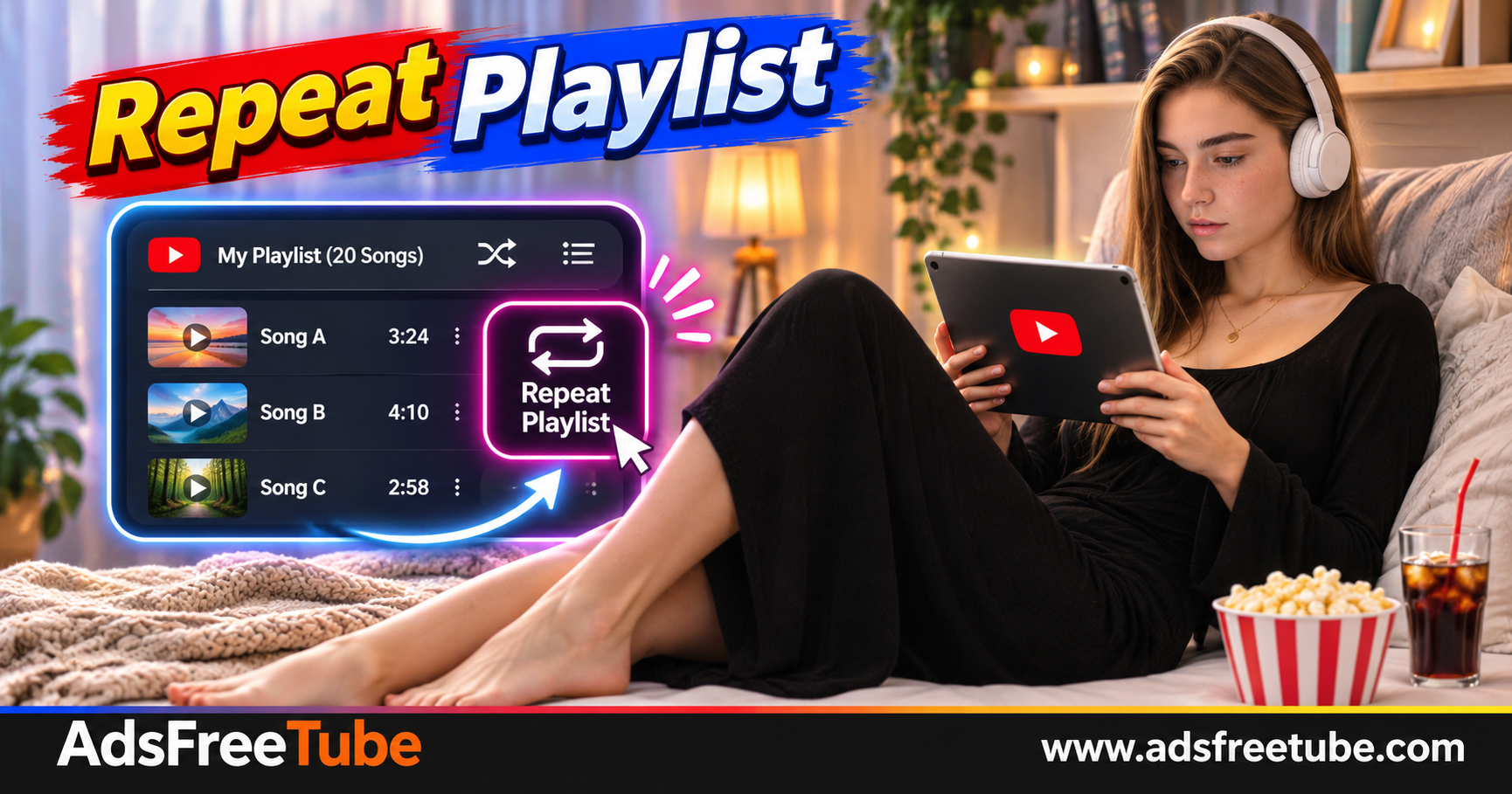
- Load the playlist once and choose Repeat All to return to its beginning after the final item finishes.
- Check that Repeat One is off; its single-item setting keeps the current video repeating instead of cycling through the collection.
- Turn shuffle off when you want each pass to follow the playlist's displayed order.
- Test the last-to-first transition before leaving playback running in the background.
- Keep the original playlist URL for future sessions; repeat controls do not create a permanent backup of the queue or its contents.
You have found the right playlist for a work session. Its final track ends, but you still have another hour to go. Adding the same songs again or pasting every video URL into a fresh queue creates unnecessary work.
Repeat All gives the loaded collection another pass. Once the playlist is ready, you can test the transition and let the player return to its beginning. This guide explains the setup in AdsFreeTube, how it differs from repeating one song, and what to check when a playlist stops instead of starting again. 🎵
How do you repeat an entire YouTube playlist without rebuilding the queue?
Load the playlist URL into AdsFreeTube, select Repeat All, and turn shuffle off if the original order matters. Let the final available video finish and confirm that playback returns to the first item. Keep the playlist loaded while listening instead of adding duplicate copies of its videos.
This works with the collection currently loaded for playback. It does not promise that a closed session, another browser, or a different device will reproduce every queue detail automatically.
Understand the playlist and queue before repeating
A playlist supplies a collection of videos. The queue shows the active playback sequence. When a supported playlist loads successfully, you can use that collection for the session rather than reconstructing it one link at a time.
| Control or action | Result | Best use |
|---|---|---|
| Repeat All | Returns to the beginning after the collection ends | Replaying an album or study playlist |
| Repeat One | Replays the active video | Practicing one lesson or hearing one song again |
| Repeat off | Does not restart the collection automatically | Finishing after one pass |
| Shuffle | Changes the playback order | Variety when sequence is unimportant |
| Loading a different source | Changes the active playback context | Starting a different session |
Step 1: load the playlist as a collection
Copy the playlist URL from YouTube and paste it into AdsFreeTube's input field. Select Play, then confirm that a playlist and its items appear in the player.
A standalone video link can load just one recording. If you expected a full album but see a single video, return to the original playlist page and copy the collection's URL. Check the playlist title and several item titles before starting.
The guide to loading and playing YouTube playlists in AdsFreeTube explains the source workflow and the restrictions that can affect individual videos.
Use a supported public playlist whose intended items remain available. A playlist may load while some uploads within it are private, deleted, restricted, or incompatible with external playback. Repeat does not restore those recordings.
Step 2: select Repeat All explicitly
Find the repeat button among the playback controls. Use it to cycle through the available modes until Repeat All is active. Check the mode's label or description rather than relying only on its highlighted appearance.
AdsFreeTube displays a small 1 badge for Repeat One. If that indicator is visible, change the mode before expecting the whole collection to repeat.
You do not need to add the playlist a second time. Duplicate entries can make the sequence harder to inspect and obscure whether the actual repeat setting is working.
Step 3: choose a predictable order
Turn shuffle off when the sequence matters. This is especially useful for complete albums, numbered lessons, language exercises, and playlists that gradually change energy or intensity.
With shuffle off, note the first and final available items in the displayed collection. Those titles make the wraparound test easy to recognize.
Choose a collection you actually want to hear twice. A playlist that fits your activity reduces the urge to skip and rearrange tracks during the session. The guide to organizing a focused YouTube listening queue offers practical ways to match the sequence to work, study, and rest.
Step 4: test the last-to-first transition
Select the final available item and start playback. To make an initial check faster, seek near its end, then let it finish naturally.
Watch for the first item's title to become active and listen for playback to begin. Afterward, select the item where you want your session to start and leave Repeat All enabled.
Also test an ordinary transition between adjacent items. Keep the player visible during these tests. Once both transitions work, try switching tabs or locking your phone separately. Background playback depends on browser and device behavior in addition to the repeat setting.
Repeat a playlist directly on YouTube
YouTube also provides its own playlist loop control. On a computer, open a video within the playlist, expand the playlist panel, and select Loop inside that panel. Google's official guide to looping videos and playlists documents the desktop steps and other device options.
Use the playlist control when the goal is to repeat the collection. Looping only the active video serves a different purpose. Confirm the final-to-first transition on YouTube too, especially after changing playback settings.
Fix a playlist that stops instead of repeating
Troubleshoot the point of failure before rebuilding anything. A repeated current song, a failed individual upload, and a pause after screen lock call for different checks.
| What happens | First check | Next step |
|---|---|---|
| The same song keeps restarting | Repeat One indicator | Change to Repeat All |
| Playback stops at the last item | Repeat mode | Confirm Repeat All and retest the boundary |
| One video fails during each pass | Source availability | Check that upload on its original platform |
| The order changes unexpectedly | Shuffle state and playlist contents | Disable shuffle and review the displayed sequence |
| Playback stops only after locking | Background playback and power settings | Retest with the player visible |
| Playback stops after a fixed interval | Sleep timer | Keep or cancel the timer according to your plan |
If the collection itself will not load or advance, use the guide to fixing YouTube playlists that will not load or play to check source links, unavailable items, and browser conditions.
Avoid clearing website data as an early troubleshooting step when you still need local Favorites or History. First keep a copy of the playlist URL and any important individual source links.
Keep a reusable source for the next session
Repeat All handles the current session. To return another day, favorite the playlist or keep its URL in a bookmark or notes document. Confirm that you saved the collection rather than only its currently playing video.
A source playlist can change when its owner adds, removes, or reorders items. Saving its URL does not freeze the contents. Keep individual URLs separately when exact recordings matter.
Before settling into a longer session:
- Confirm the full intended playlist is loaded.
- Select Repeat All and check that the 1 badge is absent.
- Turn shuffle off if order matters.
- Test one ordinary transition and the last-to-first transition.
- Keep the source URL for future visits.
- Set a stopping time if you do not want repeated playback indefinitely.
Frequently asked questions
Do I need to add every video again after the playlist finishes?
No. Repeat All is intended to cycle through the loaded collection again. Check that setting before duplicating videos or reloading the playlist.
Why does only one video repeat?
Repeat One may be active, or the player may have loaded only a standalone video. Check both the mode and the displayed collection.
Does Repeat All save my queue permanently?
No. Repeating playback and preserving a collection for later are separate tasks. Keep the playlist URL or favorite the source for easier return visits.
Will the playlist play seamlessly between every item?
Do not assume gapless playback. Source silence, buffering, and player transitions can create pauses. Repeating also requires an available source and a working connection.
Choose a collection you enjoy returning to, then open AdsFreeTube to repeat your music playlist or replay a video collection. 🎧