
Key Takeaways
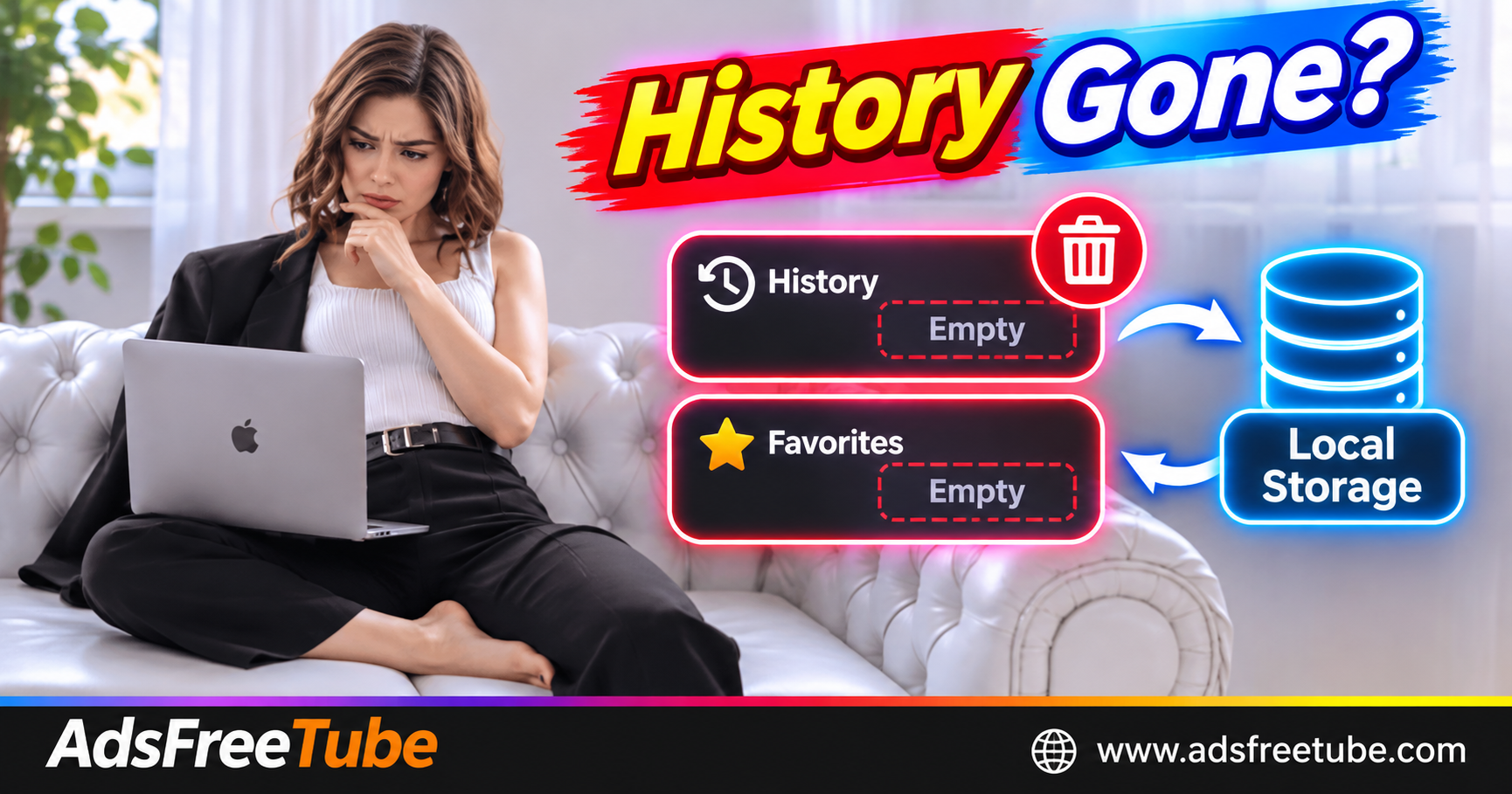
- AdsFreeTube Favorites and History use local browser storage, so the device, browser, and profile you open matter.
- Check the original browsing context, search field, and list filters before assuming entries were deleted.
- Private browsing, website-data cleanup, profile removal, and storage restrictions can affect saved information.
- A missing entry, a lost playback position, and an unavailable source video are different problems.
- Keep important video and playlist URLs, plus useful timestamps, in a separate backup.
You return to finish a podcast and find an empty History list. Or your favorite study playlist seems to have vanished after switching browsers. The first step is to identify where the information was saved and what changed since your last visit.
Local saving makes it possible to keep useful playback references without creating an account. It also means that opening the same website somewhere else does not automatically bring the same collection with you. Here is how to check what happened and protect the sources you want to revisit. 🎧
Why did my AdsFreeTube Favorites or History disappear?
Favorites or History may look empty because you opened a different device, browser, profile, or browsing mode, or because a search or filter hides entries. Actual loss can follow deleted website data or profile removal. Check the original browsing context before making changes that erase storage.
Start by remembering your last successful session. Was it in Safari rather than Chrome? Did you use a work profile instead of a personal profile? Did you open the source from a home-screen app rather than a browser tab?
These details can explain an empty list without any deletion. Return through the same route and check again before resetting the player or reinstalling anything.
Local storage explained in plain English
Local storage is information a website keeps inside your browser. It can persist between ordinary browsing sessions, but it is not an account backup. MDN's localStorage documentation explains its persistence, origin-specific behavior, and private-browsing limitations.
For AdsFreeTube, think of Favorites as chosen source references and History as recent playback information. Neither is a downloaded copy of the video. YouTube account watch history and browser browsing history are separate records.
| Information | What it helps you do | What it does not guarantee |
|---|---|---|
| AdsFreeTube Favorites | Retrieve deliberately saved sources | Automatic access from another device |
| AdsFreeTube History | Find previous sources and saved progress | Permanent archival storage |
| Browser browsing history | Locate pages you visited | Restoration of AdsFreeTube playback positions |
| A separate URL and timestamp note | Reopen a source and seek manually | Continued availability of the original upload |
Signing into the same Google account in another browser does not automatically transfer AdsFreeTube's locally saved collection. Browser bookmark synchronization is also different from synchronizing a website's local data.
Check these causes before deleting anything
1. A different browser, profile, or device
A phone and laptop have separate local storage. So do different browsers and browser profiles. Open the browser and profile where you originally saved the source.
If you normally launch AdsFreeTube from a home-screen icon, try that route too. Storage sharing between installed web apps and browser tabs can vary by platform and installation context; check both before assuming a collection is gone.
2. Private or incognito browsing
Private browsing is unsuitable for a collection you want to keep. Its local storage is cleared when the private browsing session ends. Opening a regular window afterward does not bring back that private session's saved items.
Use a regular window for future Favorites and History. Save important links separately while a private session is still open if you need to retain them.
3. Search terms or list filters
Open History and clear any search text. Check the list's active filter, then select Favorites when looking for deliberately saved sources.
A video you opened is not necessarily a favorite. Confirm that you actually used its Favorite control. The guide to saving and finding favorite YouTube videos and playlists walks through the distinction and the return path.
4. Website data or a browser profile was removed
Clearing AdsFreeTube's website data can erase locally stored entries. Deleting a browser profile, resetting a browser, or using cleanup software that removes site storage can have a similar effect.
Read cleanup options carefully. Cached files and stored website data are different categories, even when a browser offers them in the same dialog. Avoid selecting everything while you are still trying to preserve your collection.
5. Saving is blocked or repeatedly cleared
Browser privacy settings, managed-device policies, or cleanup extensions may prevent storage from persisting. Check for settings that clear site data when the browser closes or block the site from storing data.
After checking the original collection, test one nonessential favorite in a regular window. Confirm it appears, reload, and check it again after reopening the browser. If it repeatedly disappears, review the relevant settings. The guide to fixing AdsFreeTube browser problems in Chrome, Safari, Firefox, and Edge provides broader browser checks.
Separate missing entries from playback problems
An entry that is still visible but will not play is a source or playback issue. Its presence shows that at least that saved reference remains available.
A private, deleted, restricted, or embedding-disabled upload can fail even when your local list is intact. A playlist owner can also change its contents, so the collection may no longer contain a particular video.
Similarly, a video starting at the beginning does not establish that all History was erased. Check the title, active playlist item, and timeline. The guide to resuming videos from saved progress with AdsFreeTube History explains how to check your return point.
| Symptom | First check | Practical next step |
|---|---|---|
| Everything is empty on a new phone | Original device and browser | Copy source links from the original collection |
| One item is missing | Search, filter, and original source type | Look for the individual video and playlist separately |
| Entries vanish after closing the browser | Private mode or cleanup settings | Test persistence in a regular window |
| Entry remains but playback fails | Original upload availability | Test the source and another public video |
| Video opens at an unexpected position | Saved progress and active track | Seek to your noted timestamp |
Recover references and rebuild carefully
If the original browser still contains your collection, copy essential source URLs before changing settings or moving devices. Include the title, creator, and a timestamp for unfinished material.
If website data was already deleted, AdsFreeTube's interface cannot recreate that local list from nothing. Check browser history, bookmarks, messages where you shared links, and personal notes for source references. These may help rebuild a collection, but they do not restore the original local progress automatically.
Reopen recovered sources, confirm their identity, and favorite the ones you still need. For unfinished podcasts or lectures, seek manually using your notes or a familiar passage. Keep expectations realistic if the exact stopping point was never recorded elsewhere.
Protect your next collection
- Use a regular browser window and a consistent profile.
- Confirm new favorites appear under History's Favorites filter.
- Keep essential source URLs in bookmarks or a separate document.
- Record timestamps for important unfinished recordings.
- Review site-data options before browser cleanup.
- Copy useful links before deleting profiles or changing devices.
A small backup can be enough: episode title — source URL — 32:10 — discussion of the main example. Check that your saved links open correctly. On a shared browser profile, remember that other users of that profile may also see your local collection. 🎵
Frequently asked questions
Will signing into YouTube restore AdsFreeTube History?
No. AdsFreeTube's local History is separate from YouTube account watch history. Use the original browser context or reopen source links you kept elsewhere.
Does closing a normal tab delete Favorites?
Closing an ordinary tab does not normally erase local storage. Private browsing or settings that clear website data on exit can produce different results.
Can I recover entries after clearing website data?
There is no guaranteed recovery through the AdsFreeTube interface. Look for source URLs in bookmarks, browser history, and notes, then rebuild the useful entries manually.
Does saving Favorites keep videos available offline?
No. Favorites stores source references. Playback requires a connection and an available, supported upload, even when the local entry remains visible.
Once you have checked the original browser and backed up useful links, open AdsFreeTube to return to your music, podcast, or unfinished video.